Step 9 of 14
Connect your M-Pesa Till or Paybill
Payments go straight to you and are matched to each sale.
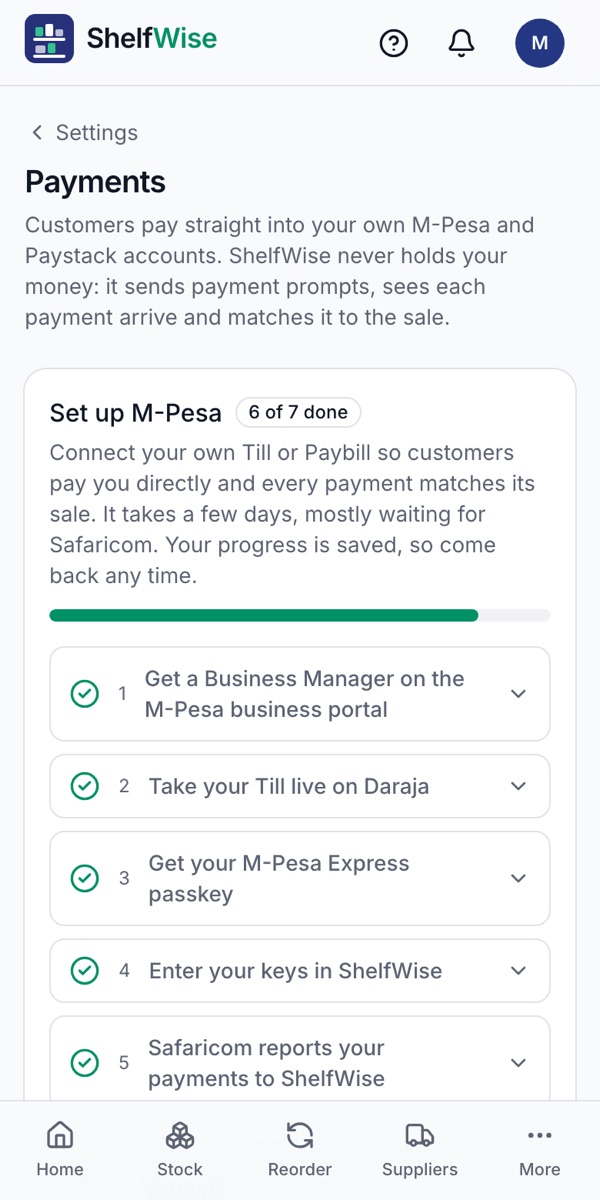
Where to find it: Settings → Payments → Set up M-Pesa
How to do it
- 1Open Settings, then Payments, and tap Set up M-Pesa.
- 2Follow the steps on screen. They link your own Till or Paybill to ShelfWise through Daraja, Safaricom's M-Pesa API.
- 3When it's done, every M-Pesa payment is reported to ShelfWise and matched to its sale, so there are no codes to check.
- 4Customers on your online shop get a prompt on their phone to enter their M-Pesa PIN.
Good to know: We can do this part for you during an assisted setup: KSh 3,000, once.
Read the full M-Pesa setup guide →
Rather we set it up with you?
We visit your business, add your products, connect M-Pesa and switch on your online shop and riders. KSh 3,000, once.
Ask for assisted setup