ShelfWise for Windows
Your till on the computer, in sync with your phone
Install ShelfWise on the Windows computer at the counter or in the office. It uses the same account as your phone, so every sale, delivery and M-Pesa payment shows everywhere at once.
- The same account as your phone: sales, stock, M-Pesa payments and reports stay in sync
- Keeps selling when the internet drops, and sends the sales when it's back
- Opens on its own from the Start menu and the desktop, full screen
- USB barcode scanners and receipt printers work as soon as you plug them in
- Updates itself in the background
- English and Kiswahili
ShelfWise for Windows
Windows 10 and 11, 64-bit
Version 1.0.0 · about 112 MB
Included in every plan and the free trial.
 ShelfWise — Point of Sale
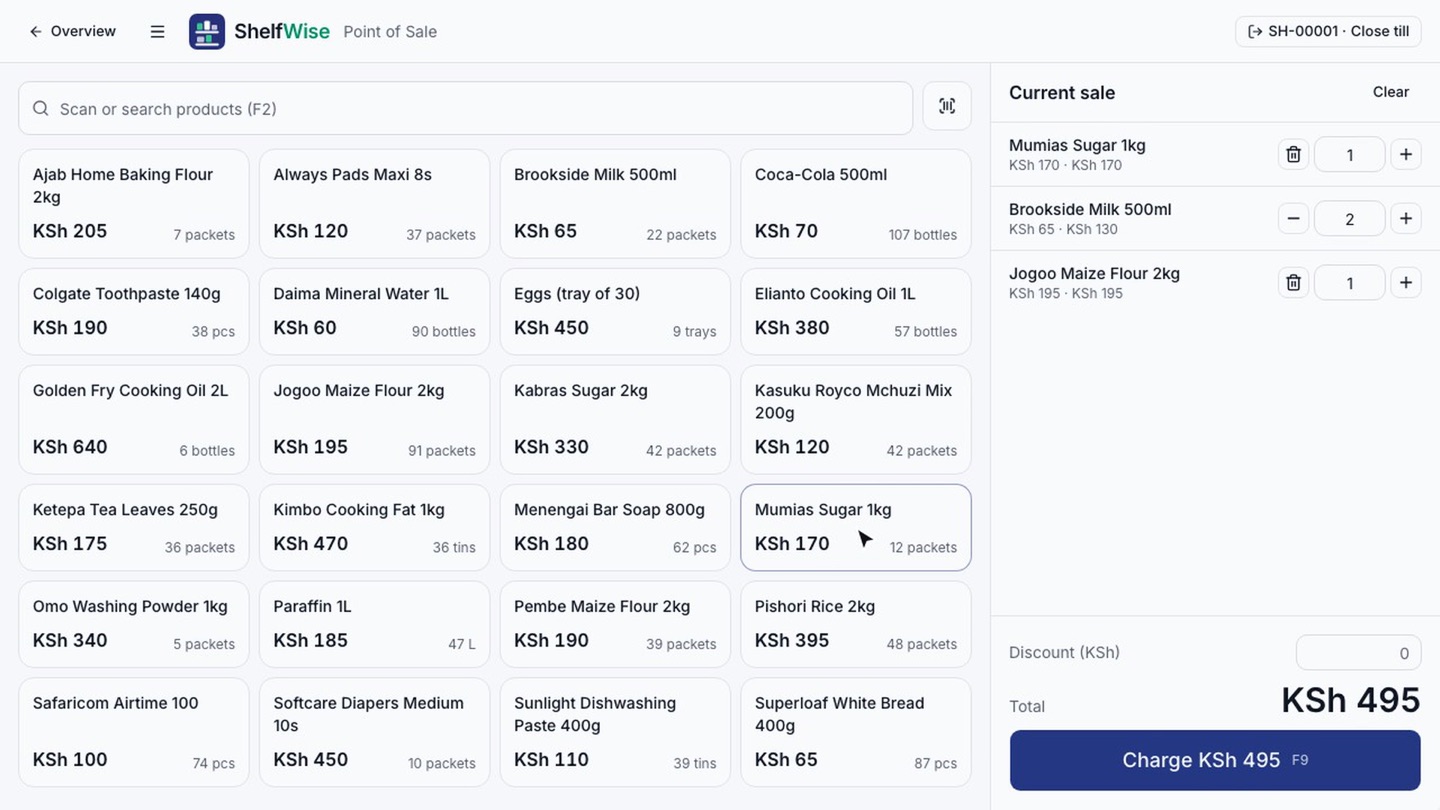
How it stays in sync
One shop, every screen
One set of records
The Windows app, your phone and the browser all open the same ShelfWise account. A sale at the counter computer shows on the owner's phone straight away, and stock received on a phone is ready at the till.
Works through outages
If the internet drops, the till keeps going: sales wait safely on the computer and are sent when the connection is back. Anything that changed elsewhere in the meantime is flagged for you, never silently overwritten.
As many computers as you need
Install it on every till and the office computer. Each person signs in with their own staff account, so you can see who sold what.
Installation guide
Set up in five minutes
- 1
Download the installer
Click Download for Windows on this page. It works on Windows 10 and 11 (64-bit).
- 2
Open it and allow the install
Open ShelfWise-Setup from your Downloads folder. It installs by itself in under a minute and puts ShelfWise on the desktop and in the Start menu.
If Windows shows “Windows protected your PC”, click More info, then Run anyway. Windows shows this for new apps it hasn't seen often.
- 3
Sign in
Use the same email and password as on your phone. Your shop, products and sales are there straight away.
- 4
Connect your scanner and printer
Plug in a USB barcode scanner and scan on the till: it just works. For receipts, install your printer's Windows driver and set it as the default printer, then use Print on the receipt (or press Ctrl+P).
- 5
Stay up to date
New versions download by themselves. When one is ready ShelfWise asks you to restart; choose Later and it updates the next time you close it.
Questions
ShelfWise for Windows: common questions
Does the Windows app cost extra?
No. It's included in every plan and in the 14-day free trial, on as many computers as you like.
Does it need the internet?
The first time you open it, to sign in. After that it keeps selling when the connection drops and sends everything when it's back. Reports and M-Pesa matching need the internet.
Will my phone and the computer show the same thing?
Yes. They use the same ShelfWise account, so sales, stock and payments made on one show on the other within seconds.
I use a Mac. Is there an app?
Not yet. On a Mac, open shelfwise.co.ke in Safari or Chrome; everything works there too.