Step 3 of 14
Add your products
Name, price, stock and a photo, one by one or from a spreadsheet.
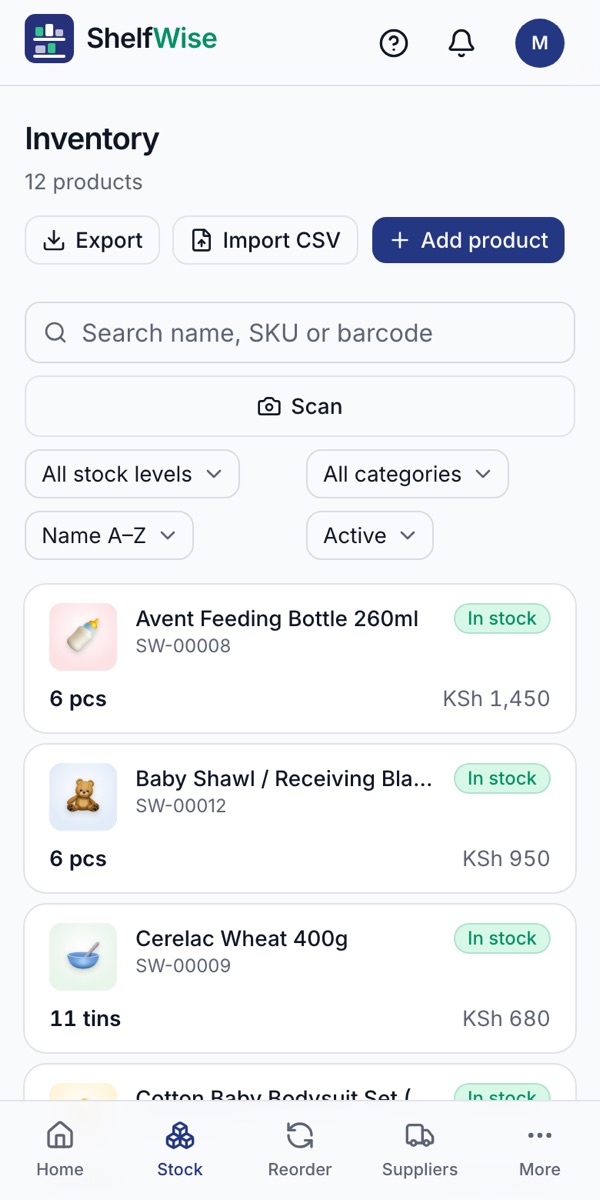
Where to find it: Stock → Add product
How to do it
- 1Open Stock and tap Add product.
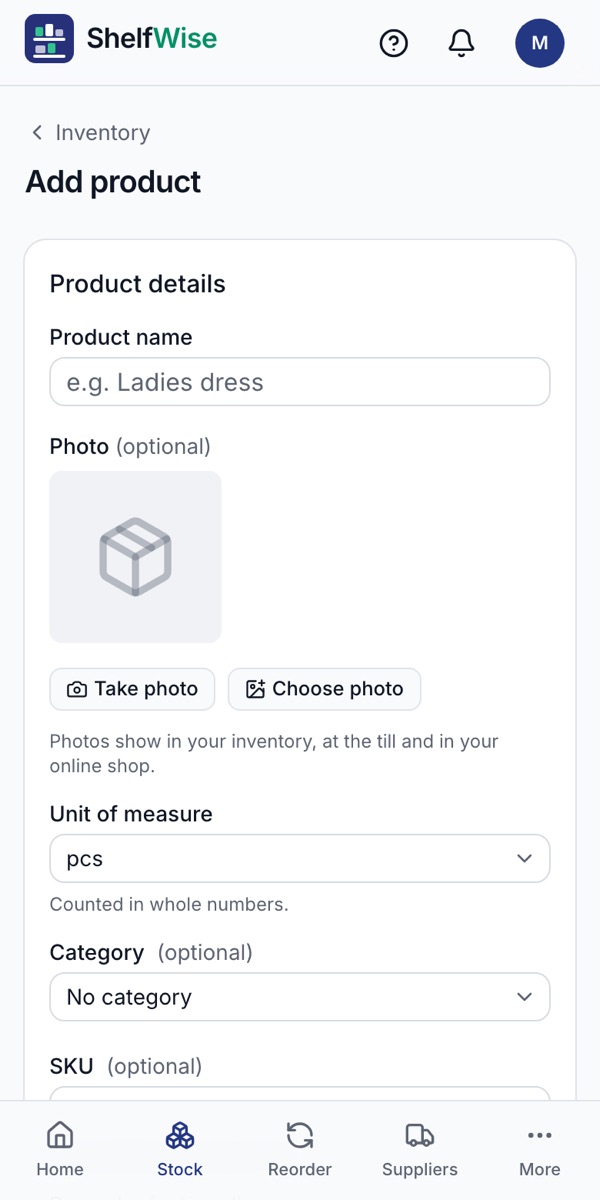
- 2Type the product name and take a photo with your phone, or choose one you already have.
- 3Pick the unit you sell in, such as pieces, packets or bottles.
- 4Enter the cost price, the selling price and how many you have today.
- 5Set a reorder level, so ShelfWise warns you before it runs out. Then tap Save.
- 6Many products? Tap Import CSV and load them all at once from Excel or another system.
Good to know: Scan barcodes with the phone's camera or a scanner, so the till finds products in a second.
Rather we set it up with you?
We visit your business, add your products, connect M-Pesa and switch on your online shop and riders. KSh 3,000, once.
Ask for assisted setup